
Most browsers help you find information.
Very few actually help you do something with it.
That’s where Perplexity’s Comet browser tries to change things.
Instead of jumping between tabs, copying content, and piecing everything together yourself, Comet puts an AI assistant directly into your browsing flow. It can read what’s on your screen, compare multiple pages, summarise long content, and even handle multi-step tasks while you stay in control.
On paper, that sounds like a big shift.
But in reality, it raises a simple question:
Does it actually save time, or just add another layer of complexity?
In this guide, you’ll get a clear breakdown of what Comet does, how it works in real situations, where it performs well, where it struggles, and whether it’s worth using in 2026.
Quick Snapshot
- Launched: July 9, 2025, initially for Perplexity Max subscribers, now available more widely via invites and a free tier.
- Platforms: Windows and macOS. Chromium extensions and bookmarks are supported.
- Best for: Power users, researchers, and people who want an AI that can automate web tasks.
- Biggest strengths: Context-aware assistant, agentic automation, workflow templates.
- Biggest concerns: Resource use (CPU and RAM), privacy trade-offs, and occasional automation errors.
What is Comet and why it matters
Comet positions itself as a personal assistant inside your browser. Instead of keeping AI separate, Perplexity builds the assistant directly into the browser interface. This makes the AI feel like a natural part of your everyday browsing.
The assistant can see the current page and any open tabs you allow. Because of this, it can understand your context and act accordingly. You can highlight a paragraph and ask for a short summary, compare multiple product pages, or request flight options across different tabs.
For people who spend a lot of time researching, shopping, or planning, Comet can reduce several steps into one smooth conversation. This approach is powerful, and in many real situations, it works surprisingly well.
If you already use AI tools for productivity, you’ll notice how Comet changes the way those tools fit directly into your browsing workflow.
Key features and how they work
Comet turns the browser into an active assistant, not just a place to view websites. Instead of switching between tabs and tools, it helps you work directly within your browsing flow.
At the core is an AI assistant that understands your current page and the tabs you choose to share. This allows it to summarise content, compare information, and help you complete tasks without breaking context.
The focus is not just on individual features, but on how they work together. Instead of using separate tools for research, comparison, and execution, Comet brings everything into a single, connected workflow.
Built-in AI assistant with page awareness
Comet’s assistant appears in a sidebar or a small pop up chat panel. It can read the current page and any open tabs that you choose to share. Because of this, the assistant always stays aware of what you are doing.
You can ask it to summarise an article, extract numbers from a long report, or translate a paragraph. It uses the visible content on your screen to give accurate and clear answers.
For example, if you have three product pages open, you can say, “Create a comparison table of these by price and key features.” The assistant scans each page, pulls the right details, and builds a neat table for you.
If you often compare information across sources, tools like this are part of a larger shift in AI tools for academic research.
This simple workflow saves time, reduces manual copying, and makes comparisons much faster.
One-click summarisation and highlights
You can highlight any long paragraph, right click, and ask the assistant to summarise it in three short points. This one click summarisation saves a lot of time, especially when you are reading long articles or research papers.
It works well for text and, in some cases, can even summarise video transcripts or long discussion threads.
Agentic workflows and automation
Comet can act on the web like a helper. You can ask it to draft and send an email, search flight options, fill forms, or group tabs by topic. When APIs are available (for Gmail or Calendar), it will use them with your permission.
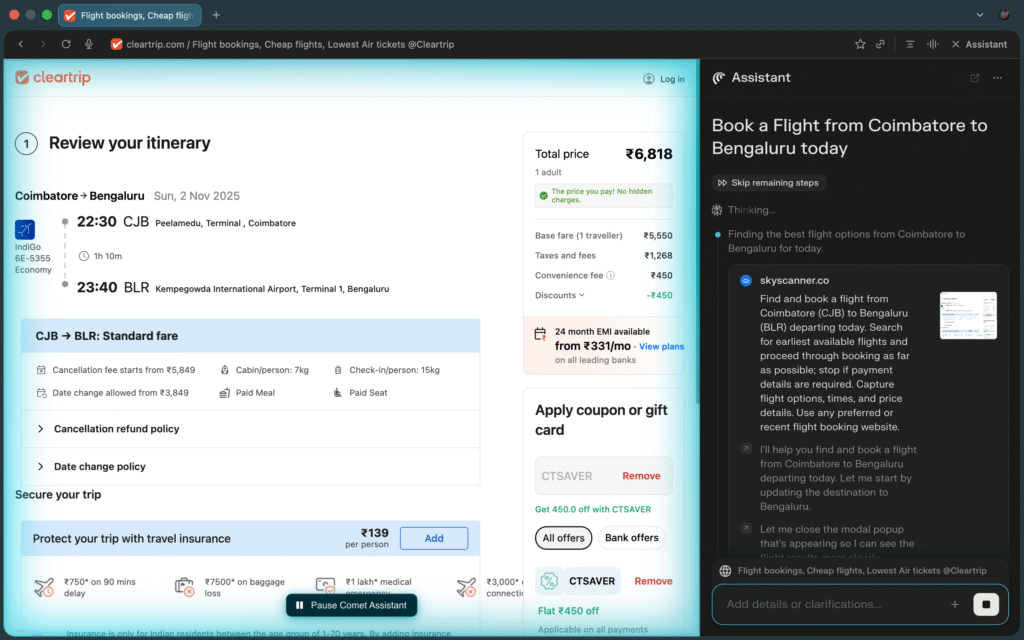
If APIs are not available, Comet will open pages and “click” through them to collect information or prepare drafts. The sidebar shows progress and asks for confirmation for sensitive actions.
Example: ask Comet to “find cheap flights to Rome in July” and it may show an initial table of options, then open airline sites in the background to refine dates and prices, then return an updated table for you to review.
Workspace and tabs reimagined
Comet offers spaces or workspaces that group your related tabs together. Inside a space, the assistant remembers the full context across all open tabs, so it understands the entire session instead of one page at a time.
You can say, “Plan my research steps based on these tabs,” and the assistant will study everything inside that workspace. It then creates a clear action plan using the information it finds.
This feature turns messy tab groups into organised sessions and makes long research tasks much easier to manage.
Connectivity with external services
Perplexity Comet Browser can connect to Gmail, Google Calendar, and other supported services when you give permission. These connections help the assistant work more accurately because it can access the right data directly.
With access enabled, Comet can draft emails, find events, or schedule tasks in a more reliable way. When an official API is not available, the assistant simply switches to browsing the page itself to complete the action.
User Interface and Daily Experience
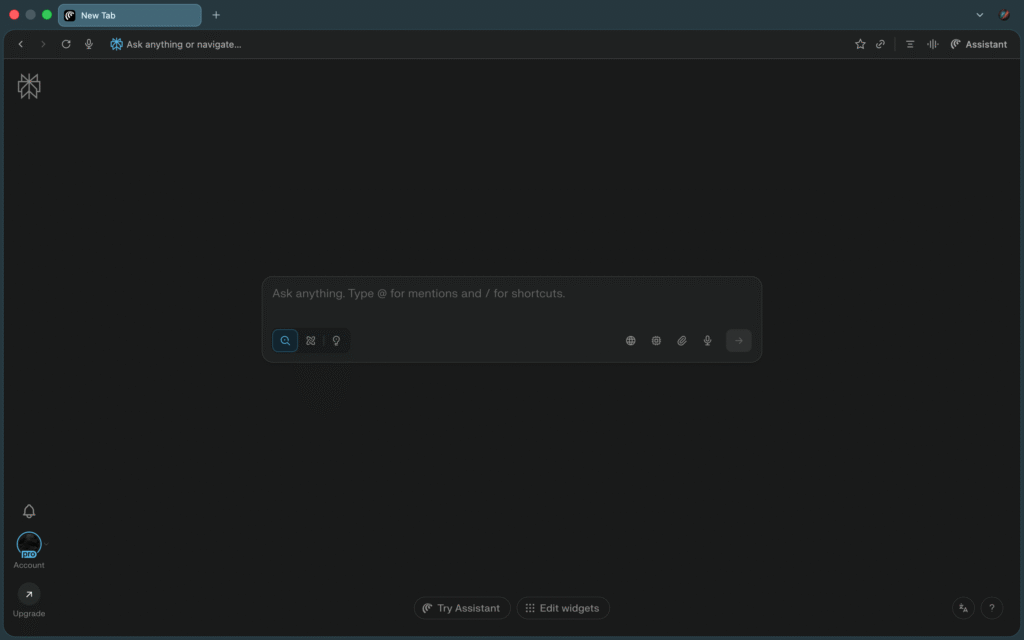
Comet has a clean and minimalist interface. If you already use Chrome or Edge, the top bar and tab layout feel almost the same. The main difference is that the omnibox accepts natural language, and the assistant panel on the right is always ready when you need it.
The homepage usually shows an AI powered search bar with suggested prompts and quick task widgets. This makes it easy to start research or ask for help immediately.
When you open the assistant, you can see your chat history, task progress, approvals, and a clear log of actions. You can type your request or use voice input. If you want a normal browsing view, you can collapse the sidebar at any time.
In everyday use, Comet feels fast for regular browsing. The assistant uses more CPU and memory only when it runs heavy automation tasks. During long background actions, the sidebar shows a progress indicator, and the browser may feel slightly busier for a short time.
Perplexity Comet vs Chrome and Edge: What’s Actually Different?
Most people already use Chrome or Edge along with AI tools like ChatGPT or Perplexity in separate tabs. So the real question is not what Comet does, but how it changes the way you browse.
In a normal browser workflow, everything is manual. You search, open multiple tabs, read through pages, and then copy or compare information yourself. If you need help from AI, you switch to another tab, paste the content, and come back.
Comet removes that back-and-forth.
Instead of treating AI as a separate tool, it brings the assistant directly into the browsing experience. It can read your current page, understand multiple tabs at once, and help you act on that information without switching context.
Here’s the practical difference:
With Chrome or Edge
- You search and open multiple tabs
- You manually read and compare information
- You copy content into AI tools when needed
- You switch between tools to complete tasks
With Comet
- The AI understands your tabs directly
- You can ask for comparisons without switching
- Tasks like summarising, planning, or drafting happen inside the browser
- You reduce manual steps and context switching
This doesn’t automatically make Comet “better.”
Chrome and Edge are still faster, lighter, and more stable for everyday browsing. If your usage is simple like reading, watching videos, or casual searches, they will feel more efficient.
Comet becomes useful only when your workflow involves:
- Research across multiple pages
- Comparing information
- Repetitive tasks
- Frequent use of AI tools
In those situations, it can reduce effort and make workflows more efficient.
So the difference is simple:
Chrome and Edge help you access information.
Comet helps you process and act on it.
Whether that matters depends on how you use the web.
For simple browsing, Chrome and Edge are still more efficient.
For research-heavy or task-driven workflows, Comet becomes more useful.
Agentic automation in practice
Agentic automation is the feature most users notice first. The assistant can handle multi step tasks such as adding items to a cart, checking for coupons, finding the best flights based on your conditions, or drafting emails using the content on a page.
When everything works well, the experience feels impressive. The assistant moves through different websites, collects the right details, and gives you a clean summary so you can make decisions faster. Perplexity also adds safety checks, so you must approve important actions like purchases or sending emails.
However, the system is not perfect yet. Many websites use complex forms, unusual login flows, or dynamic elements that can confuse an automated agent. Because of this, Comet may misclick, get stuck on unusual payment pages, or take longer than doing the task manually.
The safest approach is to let Comet gather information, prepare drafts, and organise steps, while you approve the final actions yourself.
Performance and resource usage
Perplexity Comet performs like a modern Chromium browser during normal use. Pages load fast, extensions work as expected, and the interface feels smooth and responsive.
However, the AI assistant uses more CPU and memory when it starts running tasks. Long automation jobs can raise resource usage quite a bit, sometimes doubling CPU load and using extra memory during heavy operations.
If you use an older laptop or keep many tabs open, you may notice slower performance or louder fan noise while the assistant works in the background.
For most modern machines, this trade off is manageable. Perplexity also continues to release optimisations, so resource usage should improve over time.
Privacy and security considerations
Comet needs broad access to work properly. The assistant can see your open tabs, page content, and the services you choose to connect. This access is what allows it to draft emails, schedule events, compare pages, and automate tasks.
The trade off is that more convenience also brings some privacy risk. Security researchers have shown that AI browsers can be tricked by hidden instructions on certain websites. Perplexity has patched the known issues and added several safeguards.
Comet includes safety features such as clear confirmations for sensitive actions, a visible action log, the option to stop any running task, and privacy controls that limit API access.
Perplexity also collects interaction data to improve the AI, and the privacy policy explains how this data is used.
If you prefer extra caution, you can use Comet on a secondary browser profile or avoid connecting sensitive accounts like banking or personal finance services.
Availability and Pricing
Perplexity Comet Browser is now free to download and use. It was initially limited to high-tier subscribers, but is currently available to all users globally.
However, the browser itself is only part of the experience. The AI capabilities inside Comet are powered by Perplexity’s subscription plans.
The free plan gives access to basic features with limited usage. For more advanced capabilities, Perplexity offers paid tiers such as Pro and Max, which provide higher limits, faster responses, and access to more powerful AI models.
The Pro plan is typically priced at a monthly subscription, while higher-tier plans are designed for heavy users who rely on AI extensively in their workflow. There is also an optional add-on called Comet Plus, which provides access to premium content.
Comet is available on Windows, macOS, Android, and iOS. You need a Perplexity account to use the assistant and its features.
Pros and Cons of the Comet Browser
Pros
- The built in AI assistant understands your pages and tabs, so it saves time on research and reading.
- Agentic automation can handle multi step tasks and prepare results for you to review.
- Comet is based on Chromium, so it supports extensions, bookmarks, and a familiar browsing experience.
- Workspaces help you organise research and keep context across multiple related tabs.
- Perplexity releases frequent updates, so the browser keeps improving over time.
Cons
- The AI features use more CPU and memory, which can slow older laptops during heavy tasks.
- Automation sometimes fails on complex or unusual websites and may get stuck.
- You must accept some privacy trade offs because the assistant needs access to your tabs and connected services.
- Some advanced features are available only in the higher, more expensive plans.
- As a new product, Comet still shows occasional bugs, quirks, and rare crashes.
Real world tips and best practices
- Start small and use Comet for summarisation or quick comparisons before asking it to handle complex tasks like purchases.
- Always review and approve sensitive steps such as emails, bookings, and payments the assistant prepares.
- Use a secondary browser profile for risky or confidential browsing so your main data stays safe.
- Monitor resource usage by closing extra tabs or pausing heavy tasks if your device becomes slow or warm.
- Keep Comet updated because Perplexity releases frequent fixes and performance improvements.
Who Should Use the Comet Browser (And Who Shouldn’t?)
Not every browser is built for the same type of user. Comet works best in specific situations, and in others, it may feel unnecessary.
Use Comet if
- You work across multiple tabs regularly
Research, comparisons, and planning become easier when the assistant can understand everything at once. - You already use AI tools in your workflow
Instead of switching between tools, Comet brings that capability directly into your browsing experience. - You handle repetitive online tasks
Comparing products, summarising content, or drafting responses can be done faster with the assistant. - You want to reduce manual steps
Comet helps minimise tab switching, copying, and context loss.
Avoid Comet if
- Your browsing is mostly casual
Reading, watching, and quick searches don’t benefit much from an AI-powered workflow. - You prefer a lightweight browser
Chrome and Edge are still faster and more efficient for simple usage, especially on older devices. - You are strict about privacy
Comet requires access to tabs and connected services to work effectively. - You expect perfect automation
The assistant is useful, but not flawless. Some tasks may still require manual control.
Simple takeaway
If your browsing involves research, comparison, and tasks, Comet can add real value.
If it’s mostly consumption and quick navigation, it likely won’t.
Final Thoughts
Comet is one of the strongest examples of what an AI first browser can achieve today. It turns regular browsing into a clear conversation and introduces real automation that can save time across many daily tasks.
However, Comet is still growing. The assistant is excellent at summarisation, tab organisation, and structured comparisons. At the same time, it struggles with fragile automation on unpredictable websites and brings privacy choices you must consider before giving it broad access.
If you have a modern PC and enjoy trying new AI tools, Comet is worth exploring. Start with the free tier to see how it fits your routine, and upgrade only if you need more automation and higher limits.
Comet may not replace every user’s main browser yet, but it clearly shows where browsing is heading in the AI era. If you want to try a browser that can actually do work for you, Comet is one of the best places to begin.
Want to see how AI changes browsing in real use?
Try Comet on your next research task and see if it actually saves time.
If you want to explore a different take on AI-powered browsing, you can also check the ChatGPT Atlas Browser review to see how another tool approaches this space.
Frequently Asked Questions (FAQs)
Yes. Comet has a free tier with basic AI features. Advanced automation is available in paid plans.
It can replace your browser if you use AI for research and tasks. For simple browsing, Chrome or Edge may feel lighter.
Yes, the assistant can read the tabs you allow so it can summarise pages and automate tasks. You can control access in settings.
It is safe for most users, but you should connect only the accounts you are comfortable sharing with an AI tool.
Comet is helpful for researchers, students, power users, and anyone who wants an AI that can summarise pages, compare products, plan tasks, or automate repetitive workflows.